
How to Install Zen IPTV Player on Android TV
Transform your Android TV into a premium streaming hub with Zen IPTV.
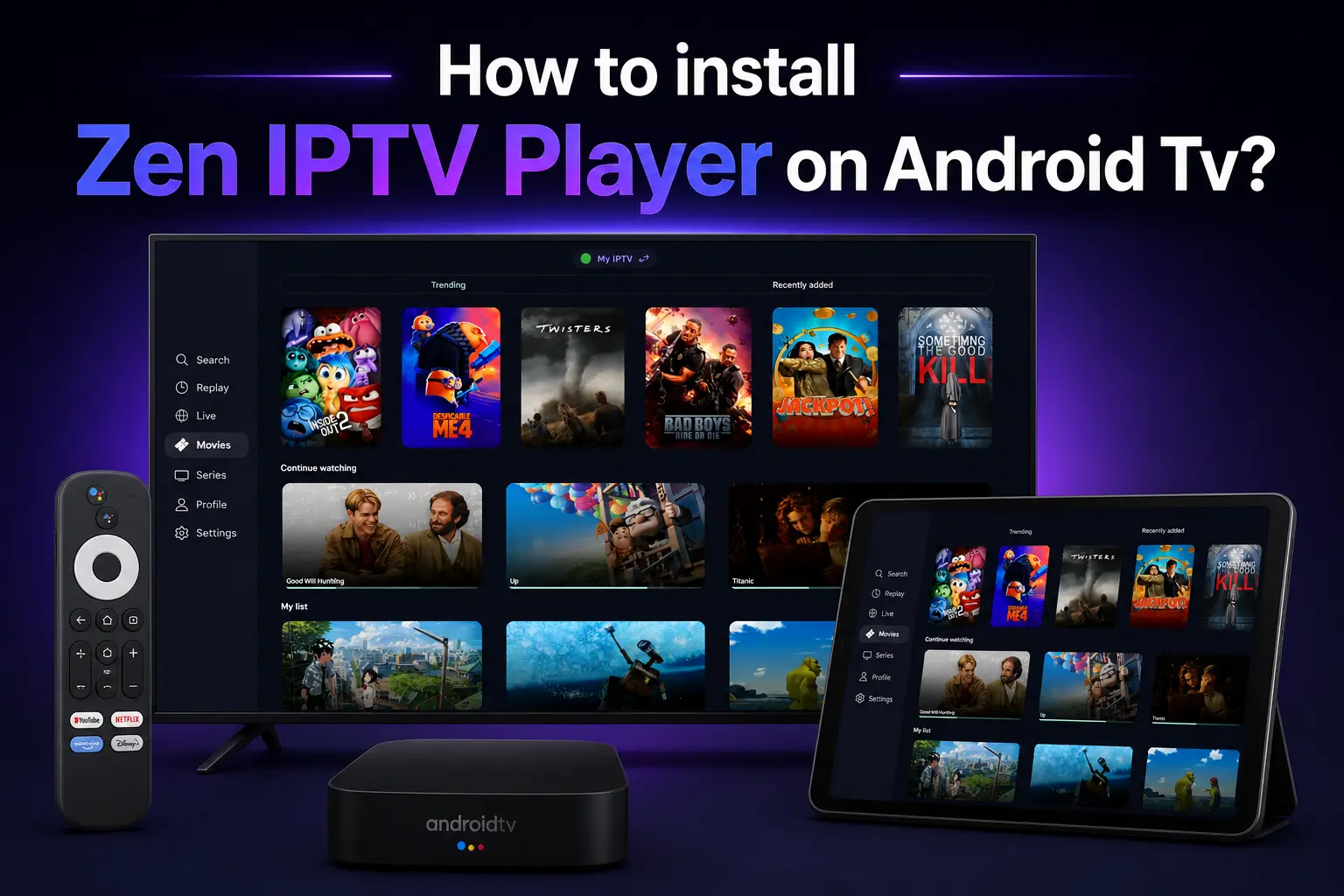
Android TV is the most open and powerful operating system for smart TVs and streaming boxes. Whether you own a Sony Bravia, Philips Smart TV, Nvidia Shield, or Xiaomi Mi Box, installing Zen IPTV Player is the best way to enjoy 4K live television.
In this comprehensive guide, we will show you how to sideload the Zen IPTV APK directly onto your device for the fastest and most stable performance.
Don't forget!
A great player needs a great playlist. Get your premium IPTV subscription with 40,000+ channels from Zen IPTV today.
Supported Android TV Devices
Zen IPTV Player is optimized for a wide range of Android-based hardware:
- Smart TVs: Sony, Philips, TCL, Hisense (Android models).
- Streaming Boxes: Nvidia Shield TV, Xiaomi Mi Box S, Mecool, Chromecast with Google TV.
- Android Tablets & Phones: All modern Android devices.
Step 1: Enabling Unknown Sources
To install apps outside the Google Play Store, you must give your TV permission to install third-party APKs.
- Go to your Android TV Settings (Gear Icon).
- Select Device Preferences (or "System").
- Navigate to Security & Restrictions.
- Click on Unknown Sources.
- Toggle the switch to ON (you will enable this specifically for your browser or Downloader app later).
Step 2: Installing via Downloader
The most reliable way to install Zen IPTV is using the Downloader app, which you can find in the Play Store.
- Open the Google Play Store on your TV.
- Search for "Downloader" (by AFTVnews) and install it.
- Open Downloader and Allow it to access your files.
Step 3: Manual APK Installation
Now we will use Downloader to grab the official Zen IPTV file.
- In the Downloader URL box, type the following official link:
- Click Go and wait for the APK to download.
- When prompted, click Install.
- If your TV asks for permission again, go to settings and ensure Downloader is allowed to install unknown apps.
- Once installed, click Open.
https://zeniptv.app/releases/zenplayer.apkStep 4: Activation & Playlist Setup
Congratulations! Zen IPTV is now on your Android TV. Follow these final steps to start watching:
Note down your MAC Address or Device ID shown on the start screen.
Upload your M3U playlist or enter your Xtream Codes login details.
Click Save and wait for your channels to populate.
FAQ: Zen IPTV for Android TV
Does this work on Nvidia Shield?
Yes! Zen IPTV is perfectly optimized for the Nvidia Shield Pro and Shield TV models for the ultimate 4K HDR experience.
Is the app updated automatically?
Since you are installing via APK, you may need to download the new version periodically from our official link to get the latest features.
Why is the streaming lagging?
Lag is usually caused by an unstable internet connection or a low-quality IPTV provider. Ensure you are using a high-speed connection and a premium subscription.
Ready to Elevate Your TV?
Experience live sports, movies, and TV shows in stunning quality. Pair your new Zen IPTV Player with the world's most reliable IPTV service today.