
How to Install Zen IPTV Player on Windows 10 & 11
The ultimate desktop guide to professional 4K streaming on your PC or Laptop.
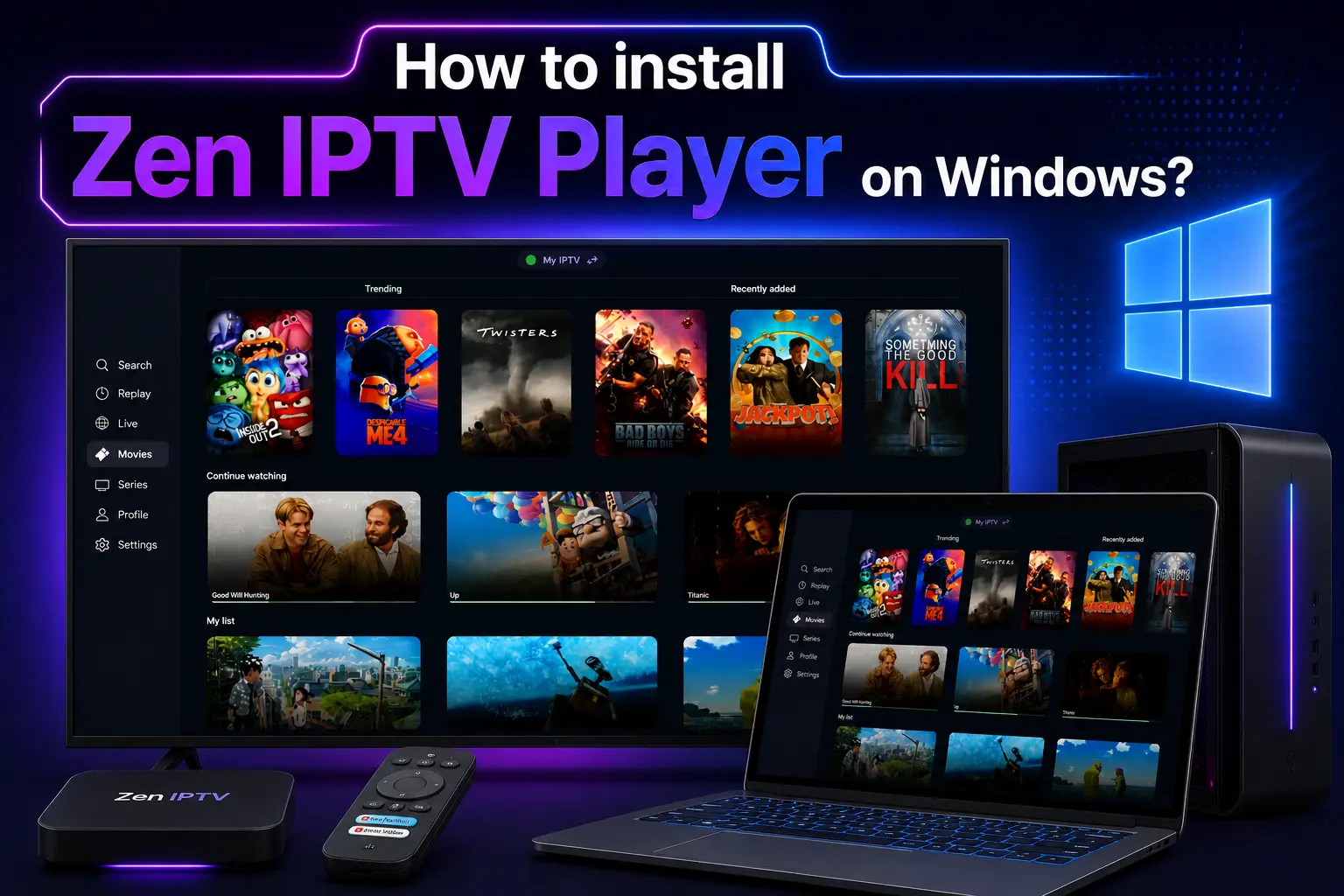
Your Windows PC is a powerhouse for entertainment. Whether you're a gamer, a professional, or a casual user, Zen IPTV Player transforms your desktop or laptop into a full-scale home cinema. Available natively for Windows 10 and Windows 11, Zen IPTV offers the most stable streaming engine in the industry.
In this guide, we will walk you through the official installation process using the Microsoft Store, ensuring you get the most secure and up-to-date version of the app.
Streaming Requirement
To watch live TV, you need an active playlist. Explore our premium plans for 40,000+ channels and a massive VOD library.
Why Stream IPTV on Windows?
The Windows platform offers unique advantages for IPTV enthusiasts:
- Picture-in-Picture: Use the "Always on Top" feature to watch while you work or game.
- 4K Resolution: Take full advantage of your high-resolution monitors and GPU acceleration.
- Wired Stability: Most PCs use Ethernet, ensuring zero buffering even on high-bitrate 4K channels.
Step 1: Installing from Microsoft Store
Click the official Microsoft Store button below to open the installation page directly:
Get it from MicrosoftOr search for "Zen IPTV Player" manually in the Microsoft Store app on your PC.
Step 2: Initial App Setup
After clicking "Get" and "Install," follow these simple steps:
- Open the Start Menu and launch Zen IPTV Player.
- Firewall Permissions: If a Windows Defender Firewall prompt appears, click Allow access for Public and Private networks. This is necessary to stream video data.
- The app will open and display your Device ID and MAC Address.
Step 3: Activating Your 4K Playlist
Note your Device ID and Key from the app's main screen.
Go to our subscription page and enter your M3U URL or Xtream Codes.
Click Save and restart the app on your Windows PC to load your channel list.
Advanced Windows Optimization
To ensure the smoothest 4K experience on Windows:
- Hardware Acceleration: Ensure your GPU drivers (NVIDIA, AMD, Intel) are up to date.
- Gaming Mode: Turn on Windows "Game Mode" in settings to prioritize resources for the IPTV player.
- Shortcuts: Use the
F11key to quickly toggle between Windowed and Fullscreen mode.
Frequently Asked Questions
Does it work on Windows 11?
Yes, Zen IPTV is fully optimized for Windows 11 and takes advantage of its modern window management features.
Can I use it on multiple PCs?
You can install the app on as many PCs as you like, but the number of simultaneous streams depends on your IPTV subscription plan.
Is there a free version?
The app is free to download. To unlock full features and remove limits, you can purchase a lifetime license.
The Professional Streaming Solution
Your Windows PC is ready for 4K. Pair it with the world's most stable Zen IPTV service and start your journey today.